
My children’s afterschool program uses Procare to share photos and videos. The gallery is great for seeing what they did each afternoon, but I could not find a bulk export in the parent website.
Saving everything manually meant opening a day, downloading each photo, checking for videos, going back a day, and repeating the process for each child. I wanted a local copy with the original dates intact, so I wrote a downloader.
This is an independent, unofficial guide and is not affiliated with or endorsed by Procare. Procare’s June 2026 terms restrict extracting, scraping, or systematically harvesting service data through automated means without Procare’s prior written consent. Use this workflow only if Procare has given you written permission, only with your own parent account, and only for media you are authorized to access. Follow your childcare provider’s policies and do not redistribute other families’ media.
What you need
- Python 3.12 or newer
- Your own Procare parent login and written permission from Procare
- Enough disk space for the gallery
- My Procare gallery downloader
The Python script uses only the standard library. It separates media by child, preserves gallery timestamps in filenames, and writes a private manifest so later runs can skip verified files. Saving credentials in macOS Keychain is optional and requires the included Swift helper plus Xcode Command Line Tools.
1. Download the script
In Terminal, create a folder and download the script plus the optional Keychain helper:
mkdir -p "$HOME/Downloads/procare-downloader"
cd "$HOME/Downloads/procare-downloader"

curl -L -O \
  https://gist.githubusercontent.com/leyanlo/0a022e29e421ed17f5cf747580e71a39/raw/procare-download.py
curl -L -O \
  https://gist.githubusercontent.com/leyanlo/0a022e29e421ed17f5cf747580e71a39/raw/keychain_store.swift
You can also download both files from the gist.
2. Test the latest 30 days
Start with a small export:
python3 procare-download.py \
  --output "$HOME/Pictures/Procare" \
  --days 30
The script prompts for your email and password. On macOS, add --save-keychain to save verified credentials in Keychain; otherwise it prompts on every run. Passwords, session tokens, and temporary media URLs are never written to the archive or manifest.
Without any child options, the script exports every child returned for your account. The output looks like this:
Procare/
  Child One/
  Child Two/
  manifest.json
The child names come from your account. Open the output folder and verify a few photos and videos from each child. Filenames begin with the gallery date and time, followed by the media type and Procare media identifier.
The script also calculates a SHA-256 hash and byte size for each file. If a run is interrupted, run the same command again: completed files are verified and skipped.
The downloader uses the gallery’s nested child filter and records which child query returned every item. This matters because a simpler filter in my first version unexpectedly returned both children.
3. Download older history
Once the test looks right, choose the earliest date you need:
python3 procare-download.py \
  --output "$HOME/Pictures/Procare" \
  --since 2024-01-01
Replace 2024-01-01 with your own starting date. Reuse the same output folder so the manifest can skip anything already downloaded during the test.
As of August 27, 2026, my export contained 1,054 items: 1,044 photos and 10 videos dating back to August 2024.
4. Download only new media later
After the historical export, use incremental mode:
python3 procare-download.py \
  --output "$HOME/Pictures/Procare" \
  --incremental
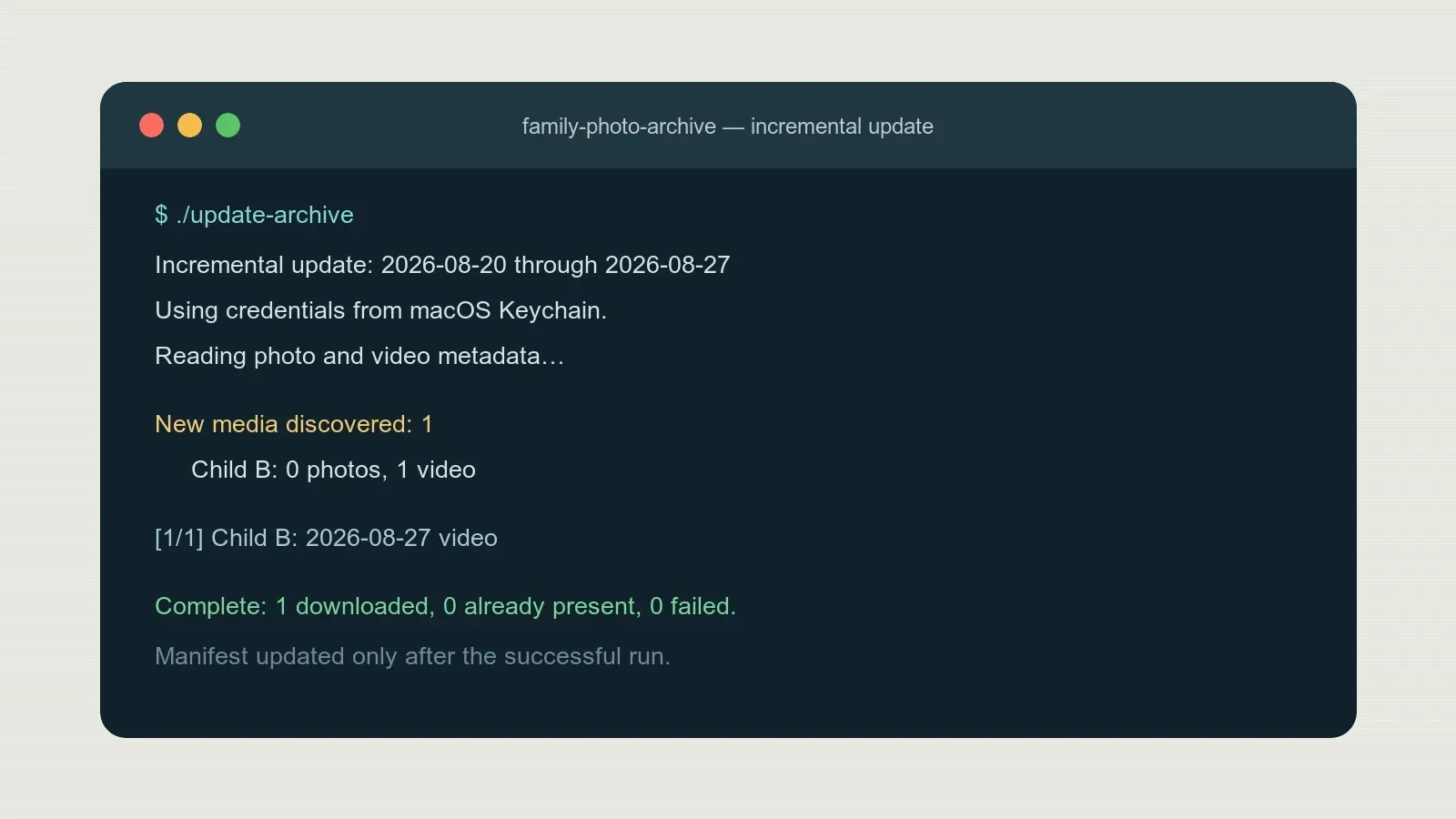
Incremental runs overlap the previous seven days to catch late additions and stop after reaching a complete page already recorded in the manifest. Requests are paced and retried; if any media still fails, the checkpoint rewinds so the next run checks the affected date range again.
Useful options
- Add
--dry-runto preview counts without downloading. - Add
--children "Child One" "Child Two"to export selected children. - Use repeatable
--child-folder "Child Name=Folder Name"options to override folder names. - Run
python3 procare-download.py --helpfor everything else.
Troubleshooting
The login fails
Confirm that the same credentials work at Procare Parent Connection. Accounts requiring SSO or a verification code are not currently supported.
The script asks for credentials again
On macOS, keep keychain_store.swift beside the Python script, confirm /usr/bin/swift --version works, and run one successful export with --save-keychain.
The child folders look wrong
Stop before a historical export. Check the child names printed by the script and use --children or repeatable --child-folder "Child Name=Folder Name" options as needed.
A request is rate-limited or a media download fails
Let the script retry, then run the same command again if it ends with failures. Completed files remain in place and the manifest checkpoint does not advance past the affected range.
Keep the output folder and manifest.json private. They contain child names, dates, and media identifiers even though they do not contain credentials or signed URLs.