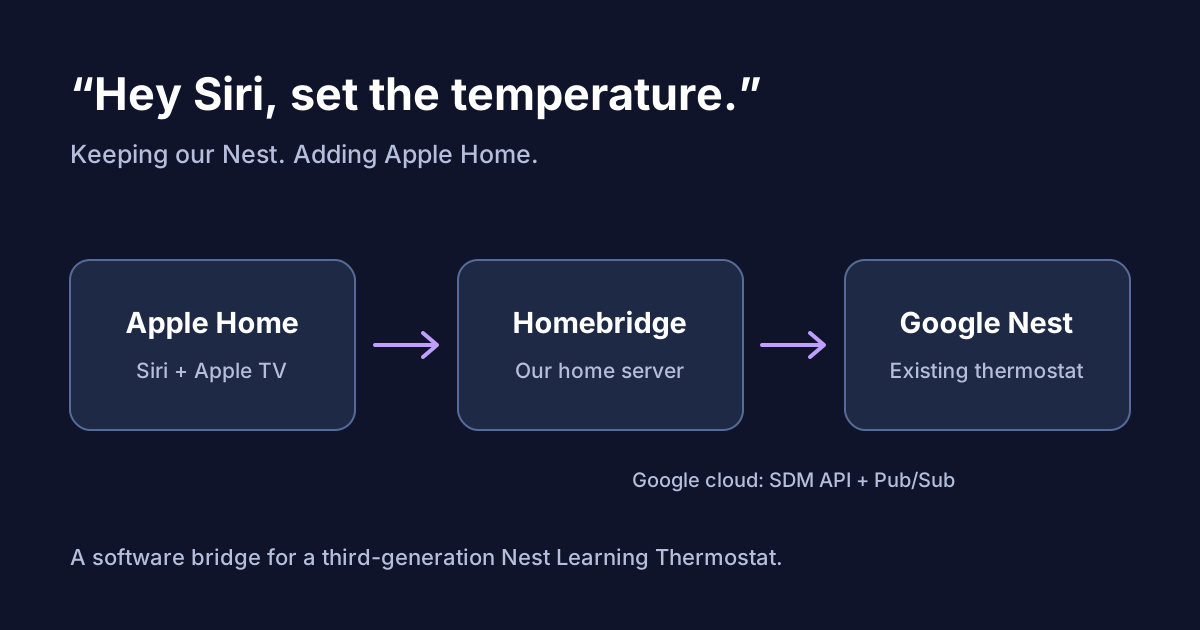
We wanted to say, “Hey Siri, set the house thermostat to 70 degrees,” without replacing our Nest.
We already had an Apple TV and an always-on home server. With Codex helping me configure Homebridge, I connected our third-generation Nest Learning Thermostat to Apple Home. Siri can now report the temperature and change the setting.
Installing Homebridge was easy. Getting through Google’s account setup took most of the work.
What I used
- A third-generation Nest Learning Thermostat linked to my Google account.
- An Apple TV 4K configured as an Apple Home hub.
- A Linux home server running Docker.
- The Homebridge Docker image and homebridge-google-nest-sdm plugin.
Check your Nest model before doing this: the 2020 Nest Thermostat and fourth-generation Nest Learning Thermostat support Matter, which can connect them to Apple Home directly.
Our older model needs a bridge. The plugin uses Google’s documented Smart Device Management API, or SDM. Homebridge is free; Google charges a one-time US$5 Device Access registration fee. Status updates use Pub/Sub, which has separate usage pricing and a free allowance.
Running Homebridge
I gave Homebridge its own Docker Compose project:
services:
  homebridge:
    image: homebridge/homebridge:latest
    network_mode: host
    restart: unless-stopped
    environment:
      TZ: America/Los_Angeles
    volumes:
      - ./data:/homebridge
This example is for Linux; host networking lets Apple Home discover the bridge. The image’s installation guide covers other environments.
After starting the container, I opened http://<server-ip>:8581, created an administrator account, and installed the Nest SDM plugin. Keep the data directory private and backed up: it holds credentials and Apple Home pairing information.
Connecting Nest
The plugin’s setup instructions walk through the Google configuration. There are two projects: a Google Cloud project for APIs, login credentials, and events, and a Nest Device Access project that connects them to Nest.
The setup comes down to:
- Register for Device Access with the Google account linked to Nest.
- Create a Cloud project, enable SDM and Pub/Sub, and configure an OAuth login client.
- Create a Pub/Sub topic and subscription, granting Google’s Nest publisher permission to publish events.
- Create the Device Access project, connect the OAuth client and topic, then authorize Nest access and configure the plugin.
Two details matter: request both SDM and Pub/Sub permissions, and create the topic in your own Cloud project. Older Google-hosted event topics stop receiving updates after November 30, 2026.
Avoid the seven-day login trap
My Google OAuth app started in Testing mode, which gave its refresh token a seven-day lifetime. Leaving it there would mean logging in again every week.
I switched the app to In production. In my Google console, that required an application homepage, privacy-policy URL, and authorized domain. I published a small information page and privacy policy, then authorized the connection again.
The new token no longer had the seven-day expiry, and I verified that it refreshed successfully. Google still showed an unverified-app warning: production mode does not mean Google has reviewed the app.
Adding it to Apple Home
On my iPhone, I opened Home → Add Accessory, scanned Homebridge’s QR code, and accepted the uncertified-accessory prompt. I tested Siri temperature queries and setting changes, and confirmed that pairing survived a Homebridge restart.
I named it House Thermostat. The device lives in the garage, but “set the garage to 70” sounds odd when we are trying to make the house comfortable.
What about the kids’ room sensor?
We normally have Nest regulate the temperature using a sensor in the kids’ room. Siri changes the target temperature; Nest still handles which sensor controls the system.
Google’s API does not expose individual Nest temperature sensors, so this integration does not give every room its own temperature tile. We still use Nest to see those readings and choose the active sensor.
The thermostat’s reported temperature should follow Nest’s active sensor, though I have not compared the readings myself. Naming it House Thermostat also avoids suggesting that Home is showing a particular room’s sensor.
We still need the Nest app for sensor management. For the everyday temperature change, we can now just ask Siri.